Many iPhone users face a frustrating issue where WiFi shows connected but internet does not work.
This usually happens due to network settings, router issues, or iOS glitches.
Based on real user experience and testing, the fixes below solve this problem in most cases.
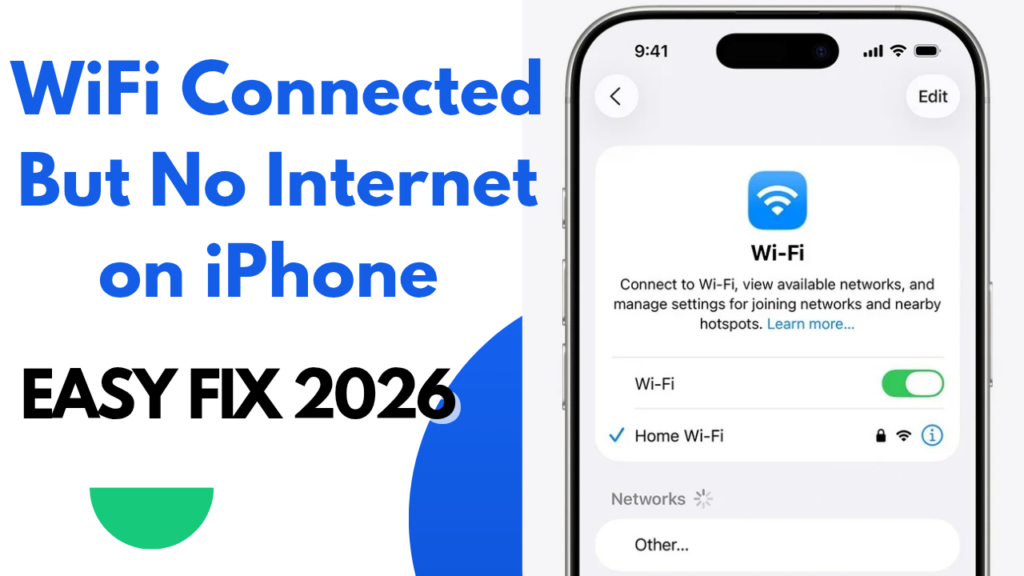
Why iPhone Shows WiFi Connected But No Internet?
From practical troubleshooting, these are the most common reasons:
- Temporary router issue
- Incorrect network settings
- VPN or DNS conflict
- iOS software bug
- Cached network data
8 Tested Fixes That Actually Work
1) Turn WiFi OFF and ON
- Settings → WiFi → OFF
- Wait 10 seconds → Turn ON again
This refreshes the network connection.
2) Restart Your iPhone
A simple restart clears temporary system glitches that block internet access.
3) Restart WiFi Router
- Turn router OFF
- Wait 30 seconds
- Turn it back ON
This fixes most ISP-side connection issues.
4) Forget and Reconnect WiFi Network
Settings → WiFi → Tap (i) → Forget This Network
Reconnect using WiFi password.
5) Disable VPN (Very Common Cause)
If you are using a VPN:
- Turn it OFF
- Recheck internet connection
VPNs often block proper DNS access.
6) Reset Network Settings (Safe)
Settings → General → Transfer or Reset → Reset → Reset Network Settings
✔️ WiFi & mobile settings reset
❌ No photos or data deleted
7) Check Date & Time Settings
Settings → General → Date & Time
Turn ON Set Automatically
Incorrect time settings can block internet services.
8) Update iOS
Settings → General → Software Update
Install the latest version if available.
Apple frequently fixes WiFi bugs through updates.
When Should You Contact ISP or Support?
- WiFi works on other phones but not on iPhone
- Internet fails on all networks
- Issue continues after reset
This may indicate hardware or ISP-level problems.
FAQs
Why does WiFi connect but internet not work?
Usually due to DNS, VPN, or cached network settings.
Will resetting network delete my data?
No, only WiFi and network settings are reset.
Does iOS update fix WiFi issues?
Yes, many WiFi bugs are fixed in updates.
In most situations, a simple network reset and small setting changes solve this problem.
I’ve helped many users fix it this way. If your iPhone still shows no internet, then it’s better to contact support.
Written by Bharat Choudhary – Tech Researcher & Guide
I research and test common mobile and internet issues
and share simple step-by-step fixes based on real user experience.
Last Updated: January 2026
Releted articles:
Phone Charging But Battery Percentage Not Increasing – Easy Fix (2026)
thank you for gide..
thanks
Pingback: iPhone Overheating While Charging – Easy Fix (2026 Guide) - Tech Fix Guide
Hello http://fixtechusa.com,
I wanted to reach out to see if you’re open to exploring ways to grow your website traffic and boost online performance.
We offer customized SEO services that deliver measurable improvements.
Once you share your target keywords and target market, I’ll send a full proposal.
Best Regards,
Anaya
Hello,
I took a quick look at your website and noticed several UI and UX issues that may be affecting how visitors interact with your site and convert into leads or customers.
Some of the key issues include buttons that are not clearly visible or easy to click, small or hard-to-read fonts, and a layout and color scheme that can feel confusing to users. On mobile devices, the site does not always display properly, and some forms and menus are not easy to find or use.
From a user experience point of view, pages take longer than expected to load, visitors have trouble finding what they are looking for, and navigation is not very intuitive. In some cases, it takes too many steps to contact you or complete a purchase, and the main call-to-action buttons like “Contact Us” or “Buy Now” are not clear enough.
These issues can lead to higher bounce rates, fewer inquiries, and lower performance on Google.
If you’d like, I can prepare a free report that shows these problems in detail and explains how they can be fixed to improve results.
Kind regards,
Pingback: Android Phone Not Charging Fast – Easy Fix (2026 Guide) - Tech Fix Guide
Pingback: Ethernet Connected But No Internet on Windows 11? 7 Quick Fixes (2026)
Pingback: DNS Server Not Responding Windows 11 – Easy Fix (2026 Guide) - Tech Fix Guide
Pingback: Speed Test Fast but Browsing Slow on Windows 11 – Easy Fix (2026)
Hello
Feature fixtechusa.com in Google Search Index and have it appear in google search results!
Register fixtechusa.com at https://searchregister.net
Pingback: Phone Charging But Battery Percentage Not Increasing – Easy Fix (2026) - Tech Fix Guide